User guide · version 0.3.2
Using Médiathèque
Everything the app does, in the order you are likely to meet it. Press F1 or choose Help in the app to open this guide at the page you are on.
Getting started
Médiathèque works on the folders you already have. It reads them, remembers what it found in its own index, and never rearranges anything unless you ask.
First launch
The first time it runs, a short setup walks through five pages: a welcome, your library folders, the video encoder (it can install ab-av1 and a suitable ffmpeg for you), a couple of preferences, and a summary. You can run it again later from Settings › Library › Run first-time setup again…
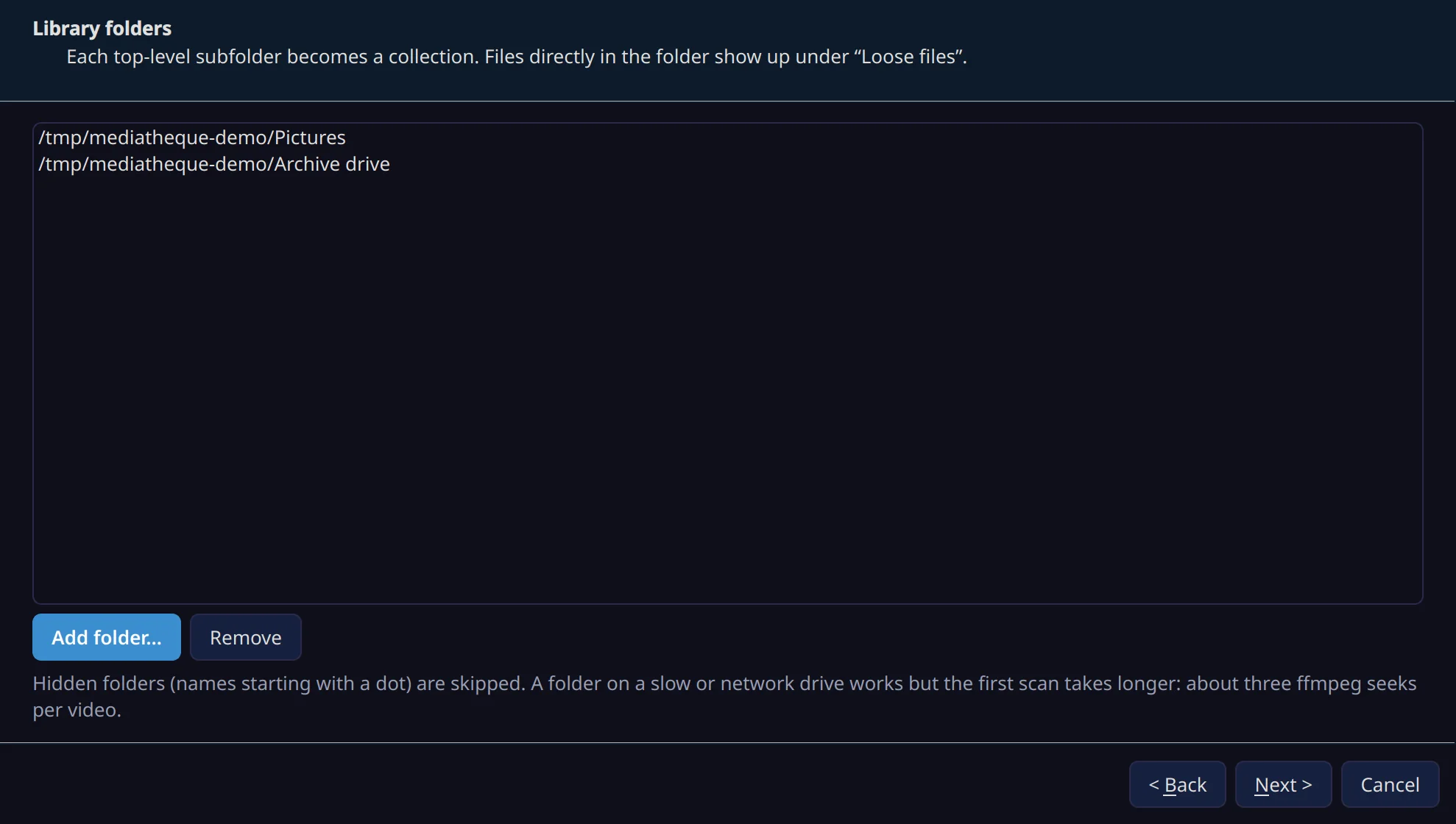
How your folders are read
- A library folder is any folder you add. You can add as many as you like, on any drive. The + beside MEDIA TREE adds another at any time.
- Each folder directly inside a library folder becomes a collection, and shows as a card in the Library.
- Files sitting directly in a library folder are its Loose files.
- Deeper folders stay folders in the Media Tree, and their names become tags on the files inside them.
- Hidden folders, and system folders such as
$RECYCLE.BIN,System Volume Informationandlost+found, are skipped.
Indexing
The first scan lists every file quickly, then reads them in the background: a hash for each picture, a fingerprint for each video, and a thumbnail for both. The Status Bar shows how far it has got. Files changed in the last ten minutes are left alone until they settle, so a copy or download in progress is not read half-finished.
While Watch library folders is on, new and removed files are picked up as they happen. A full rescan also runs every hour; both are in Settings.
The window
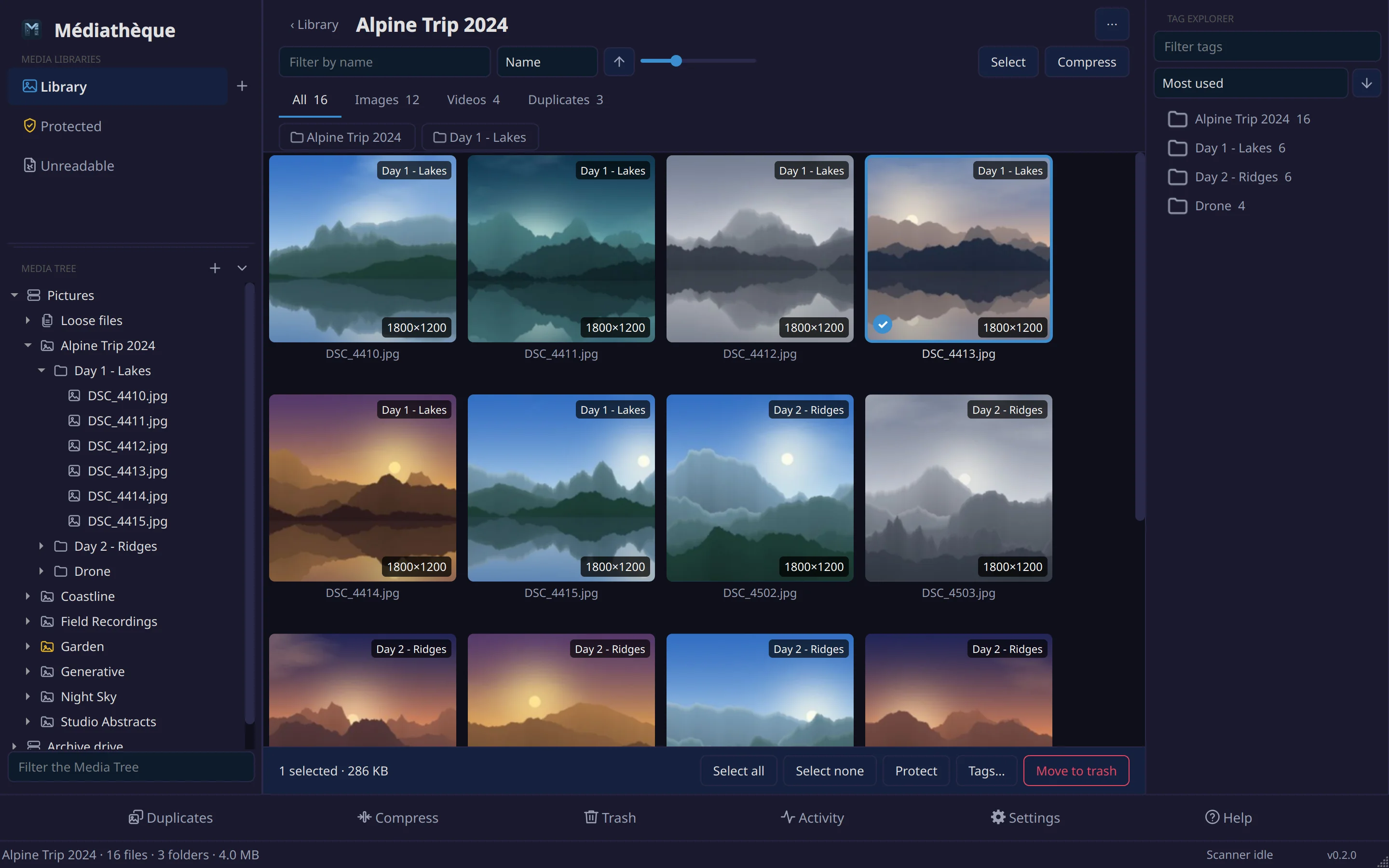
The same frame surrounds everything. These names are used throughout the guide.
 1
2
3
4
5
6
7
8
1
2
3
4
5
6
7
8
- 1Media Libraries
Library (everything), Protected and Unreadable (each shown only while it holds something), your own libraries, and New library…
- 2Media Tree
Library folders, collections, folders and files, as they are on disk.
- 3Media Tree filter
Type part of a name to see only matching folders and files.
- 4Media Browser
Where media is shown: the Library, a collection, an album, or a tool page.
- 5Tag Bar
The tags of the selected files. Click one to select it in the Tag Explorer.
- 6Tag Explorer
Every tag in the current view with a count. Choose tags to filter.
- 7Control Bar
Duplicates, Compress, Trash, Activity, Settings and Help.
- 8Status Bar
A summary of the view, then the scanner, thumbnails, encoder and version.
One rule to remember
Folders happen in the Media Tree, files happen where you see them. Rename, move, protect or trash a folder from the Media Tree. Everything you can do to a file is on the file itself, wherever it is shown.
Closing the window keeps Médiathèque running in the system tray, so it can keep watching your folders. Exit in the tray menu, or Ctrl+Q, quits. You can turn this off in Settings.
The Library
The Library shows every collection as a card with a cover, its file counts and its size. A badge on the card counts the duplicates found in it. The Loose files of every library folder share one card.
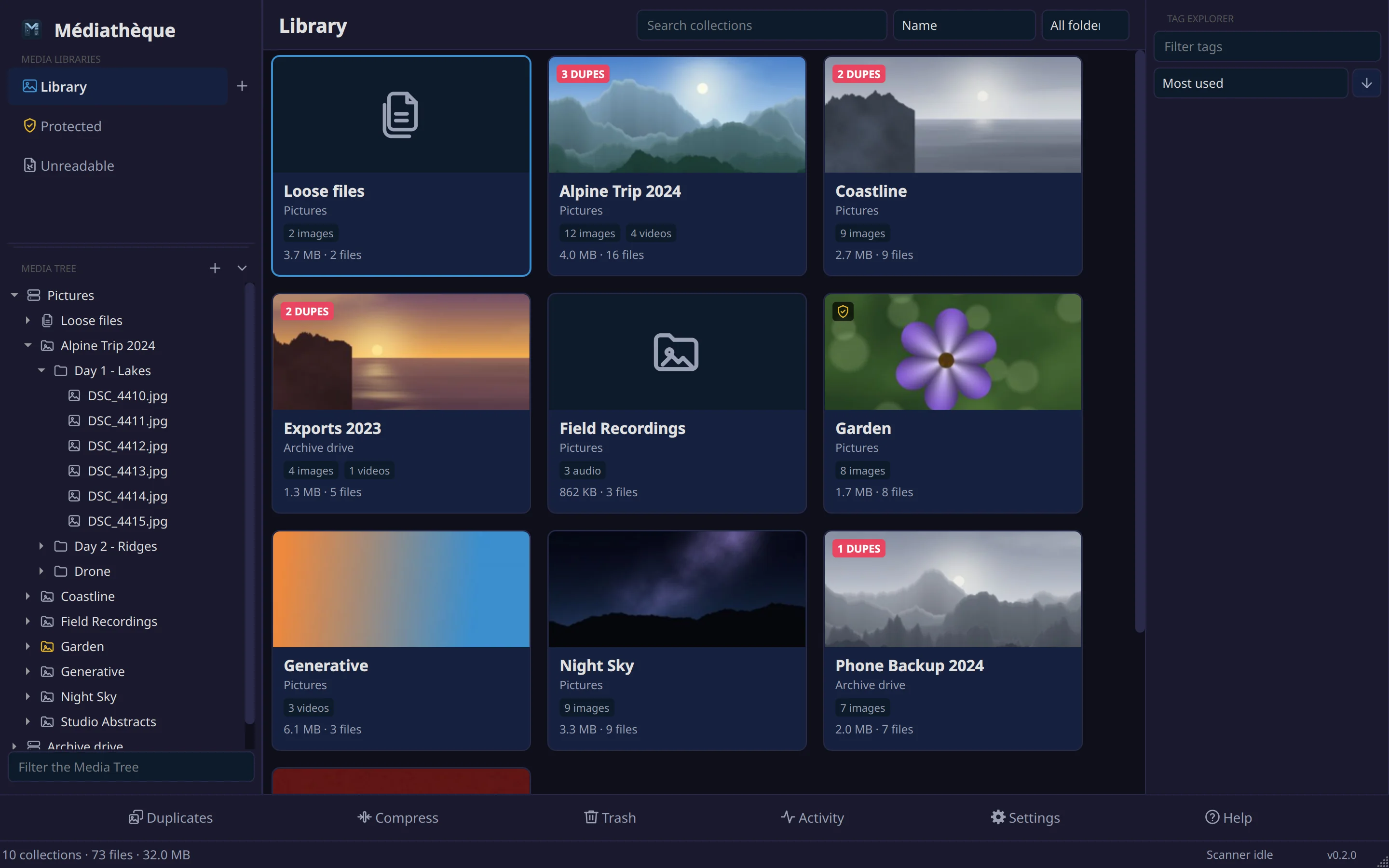
Right-click a card for:
- Open, Show in Media Tree and Show in file manager.
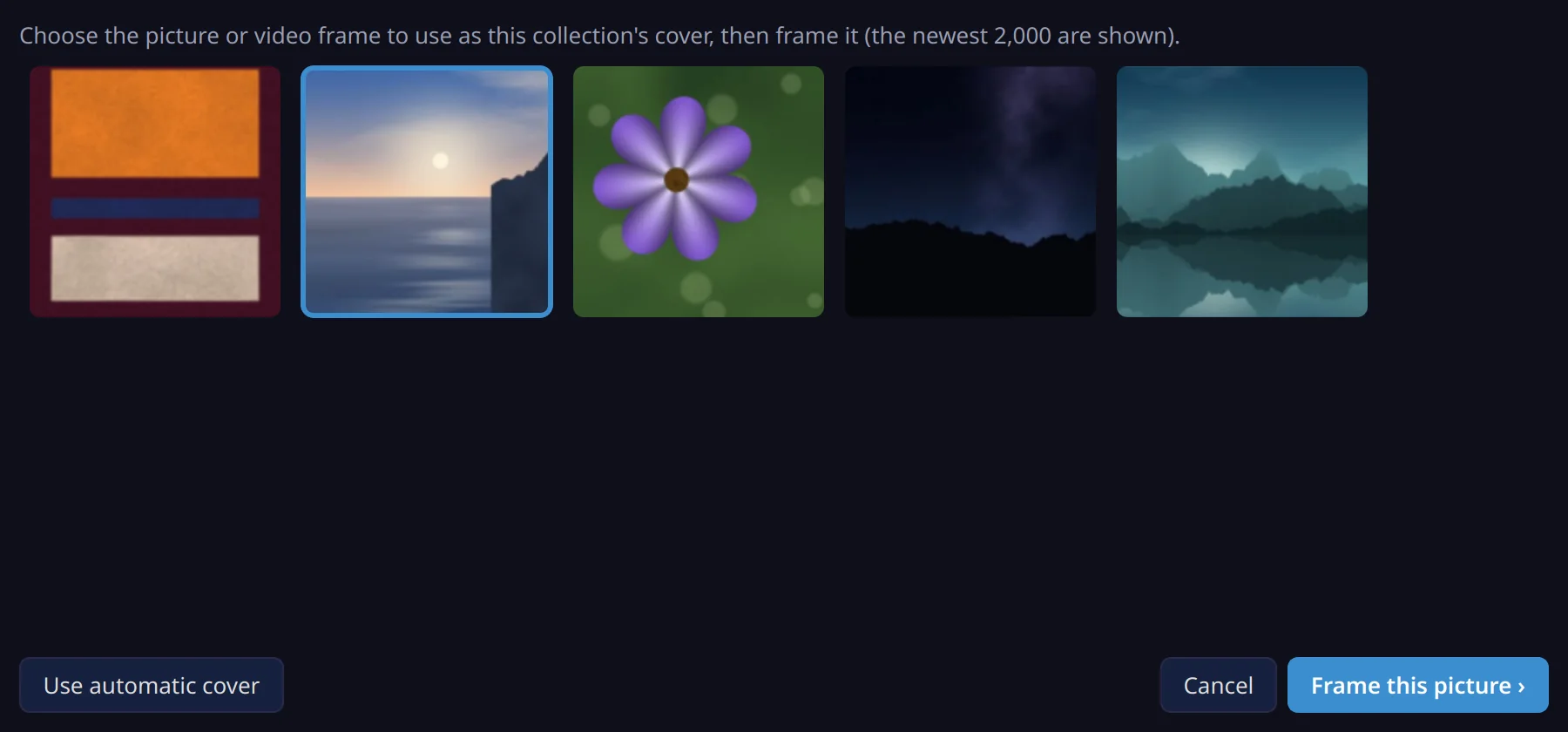
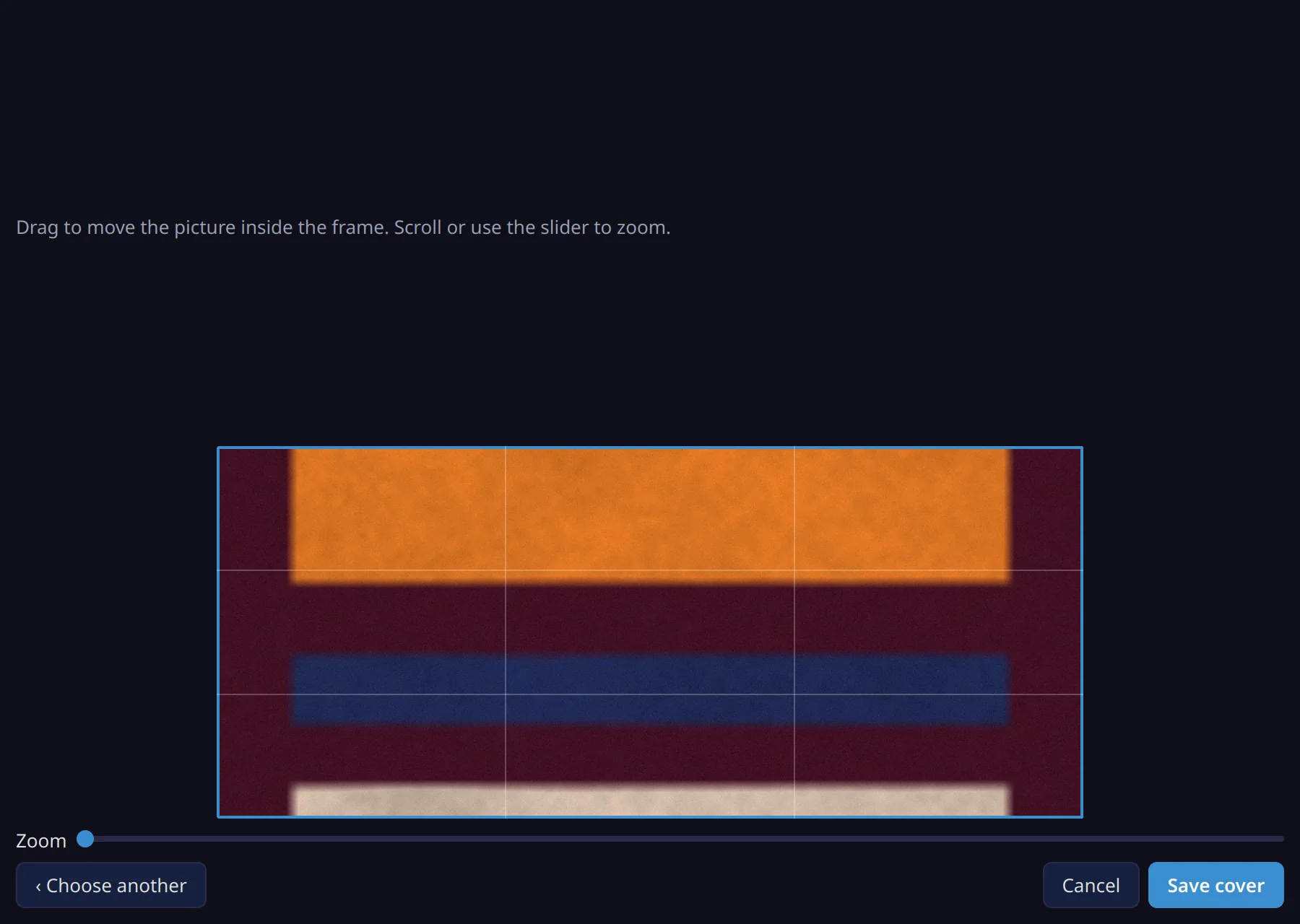
- Change cover art… Pick any picture or video frame from the collection and frame it. Covers are chosen automatically until you do.
- Compress videos now, and Compress new videos automatically to queue every new video that arrives in this collection.
- Rescan this collection.
Browsing a collection
Open a collection from its card or the Media Tree. Tabs split it by kind, with counts: All, Images, Videos and Audio (a kind with no files hides its tab), then Duplicates, and AKA when any file has one.
- Filter by name (Ctrl+F) matches file names, tags and AKAs.
- Sort by name, date, size, duration or resolution. The arrow beside it flips the direction.
- The slider sets the tile size. Settings decides whether file names sit below the tiles, on them, or not at all.
- Select turns on the selection bar: Select all, Select none, Protect, Compress and Move to trash act on everything selected.
- Compress queues every video in the collection. The ⋯ menu holds Change cover art…, Show in Media Tree, Open in file manager and Rescan this collection.
Tags
Every file carries the names of the folders it sits in below the collection, plus any tags you give it yourself (Tags… on a file or a selection). The Tag Explorer on the right lists every tag in the view, most used first or by name. Choose one or more to show only files carrying any of them. Right-click a tag to rename it, remove it from the files shown, or delete it everywhere. Folder tags follow the folders, so they change only when the folder does.
Acting on files
Double-click a file to open it in the viewer. Right-click it for Open, Tags…, Add to album…, Show in Media Tree, Show in file manager, Rename… (F2), Protect, Compress and Move to trash (Delete). To move files, drag them onto a folder in the Media Tree.
The viewer
Pictures open fitted to the window; videos and audio play with a slider you can seek anywhere on. The arrow keys step through whatever view you opened it from. Info shows the file's details along the bottom.
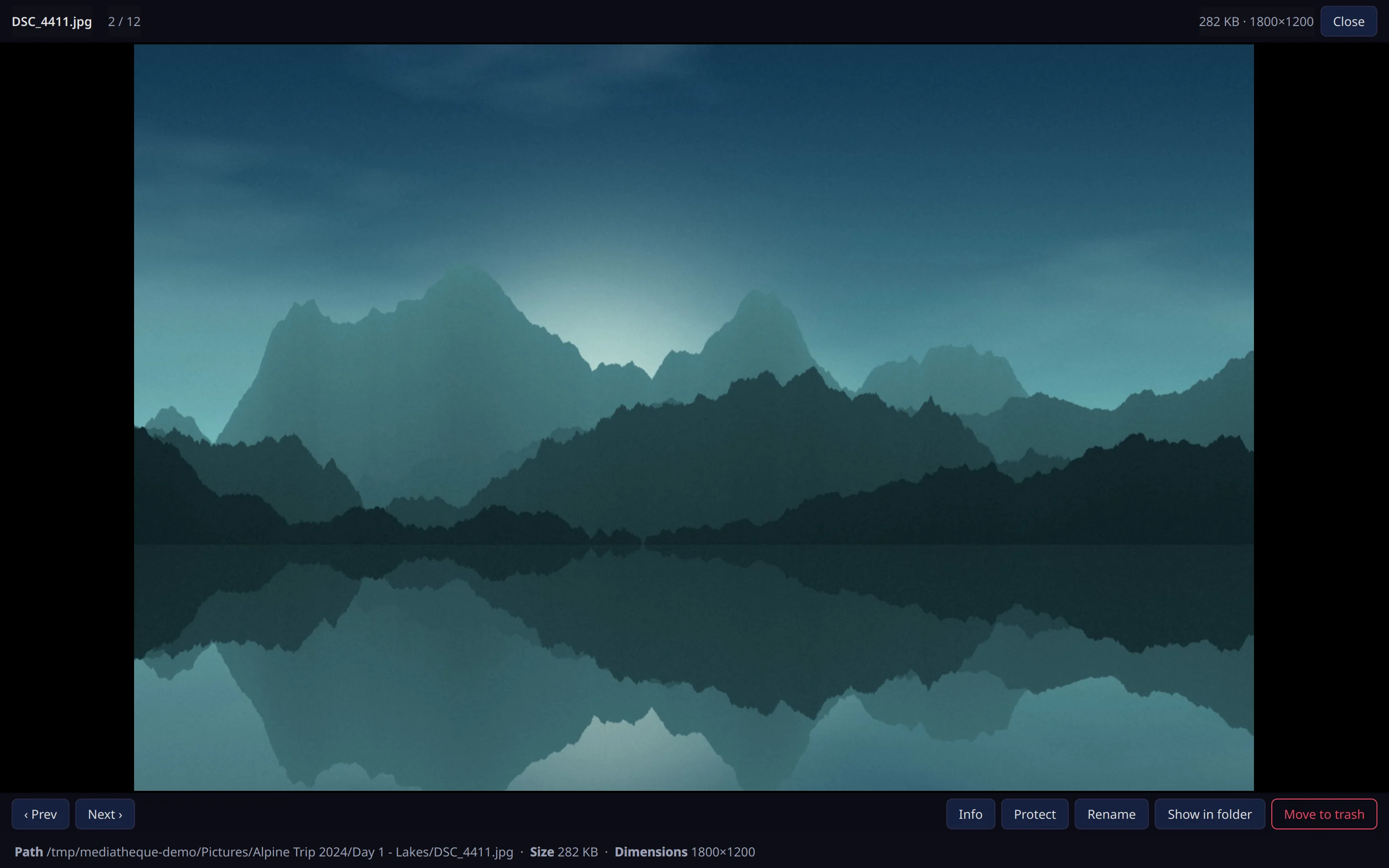
| Key | What it does |
|---|---|
| ← → | Previous or next file (PgUp and PgDn too) |
| Space | Play or pause; on a picture, the next file |
| J L | Back or forward 10 seconds |
| M | Mute |
| 0 1 | Fit to the window, or actual size |
| + − | Zoom in or out |
| I | Show or hide the info line |
| P | Protect or unprotect |
| F2 | Rename |
| O | Show in the file manager |
| Delete | Move to the trash |
| F | Full screen |
| Esc | Close the viewer |
If you would rather use your desktop's own player or image viewer, Settings › Viewer can hand videos, pictures or audio to them instead.
The Media Tree
The Media Tree is your folders as they really are, and the place for anything that changes them.
- Click a library folder to see its collections, a collection to open it, or a folder to open its collection filtered to that folder. Click a file to highlight it in the Media Browser, or double-click it to open it.
- Select several items with Ctrl or Shift to see everything they contain together.
- Drag files or folders onto another folder to move them. Moves to another drive show their progress.
- Drag library folders above or below each other to reorder them.
- Right-click for New folder…, Rename…, Protect folder, Move to trash, Show in file manager, and on a library folder, Rescan library folder and Remove from library…

Remove from library… only stops Médiathèque from tracking that folder. Nothing on disk is deleted, and its tags and album places are kept in case you add it back.
Duplicates
Médiathèque groups copies of the same picture or video, picks the one to keep, and lets you review every decision before anything moves.
What counts as a duplicate
- Pictures are duplicates when their bytes are identical.
- Videos are compared by fingerprint: a frame at 25%, 50% and 75% of the length, each reduced to 64 bits, 192 in all. Two videos within 12 bits of each other, with lengths that agree within 5% or one second, are the same video. That catches re-encodes, resized copies and different containers.
Which copy stays
In each group, the copy to keep is chosen in this order:
- A protected file always stays.
- The app's own work: a compressed video (or one already in AV1 or HEVC) beats an uncompressed one, even a larger one.
- The highest resolution.
- The largest file.
- Finally the shortest path, then the oldest, so the choice never flips between runs.
The Duplicates page
Duplicates in the Control Bar shows every group in your library. The totals at the top show what has been reclaimed so far, what is still reclaimable, and how many groups there are. The scope menu picks all groups, groups within one collection, or groups that span collections.
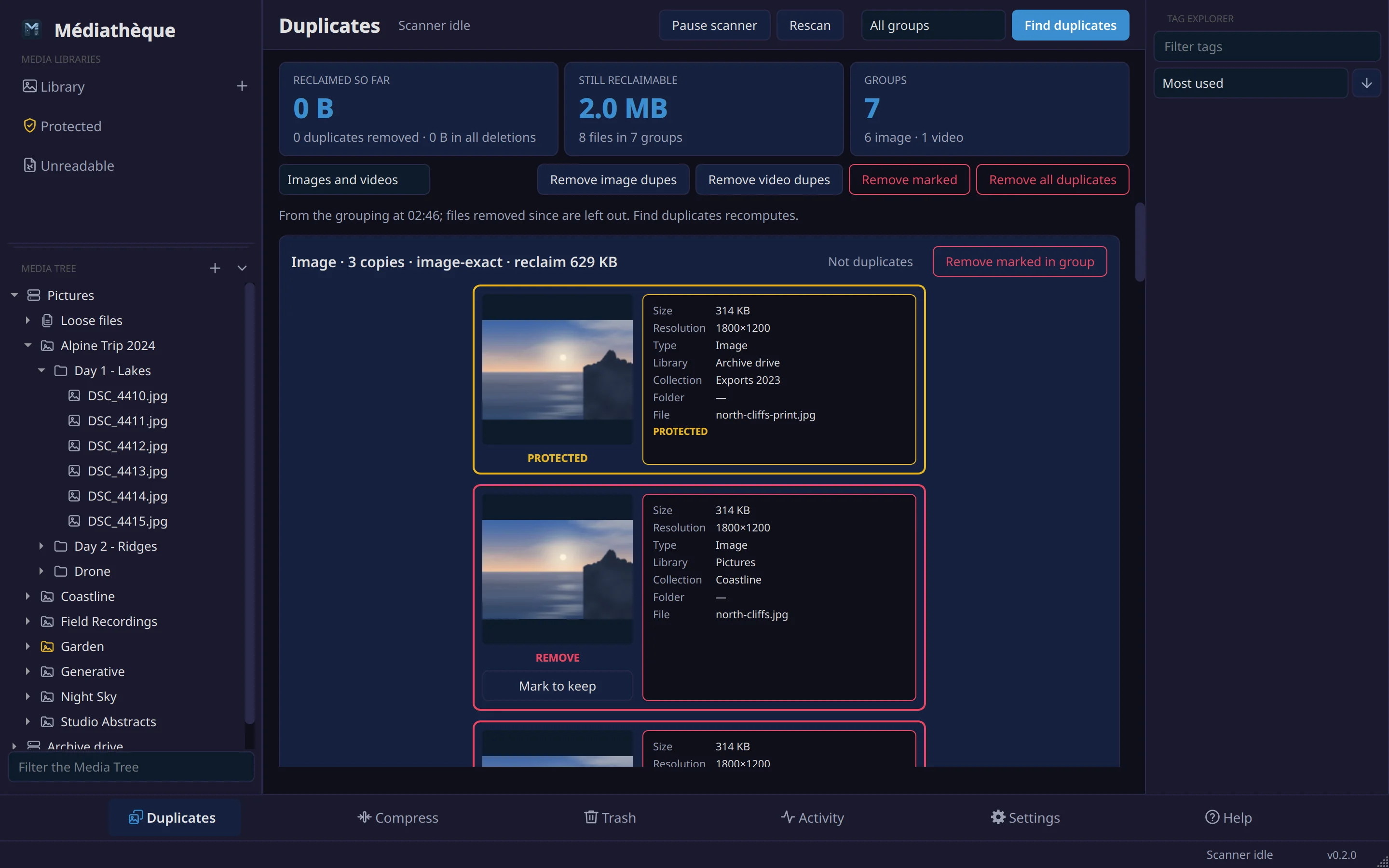
- Each copy is a card with its size, resolution, library folder, collection and folder. Copies marked for removal have a red border; Mark to keep changes that.
- Click a card to see the group at full size in the viewer.
- Click a copy's collection or folder to open it in your file manager, or its file name to see the file in its folder.
- Not duplicates separates a group for good.
- Remove marked in group acts on one group; Remove marked, Remove image dupes and Remove video dupes act on the groups shown.
- Remove all duplicates takes every group, including those beyond the largest ones shown on the page.
The page opens on the last grouping, which is made after every scan, so it appears at once. Find duplicates groups again from scratch.
A collection's Duplicates tab
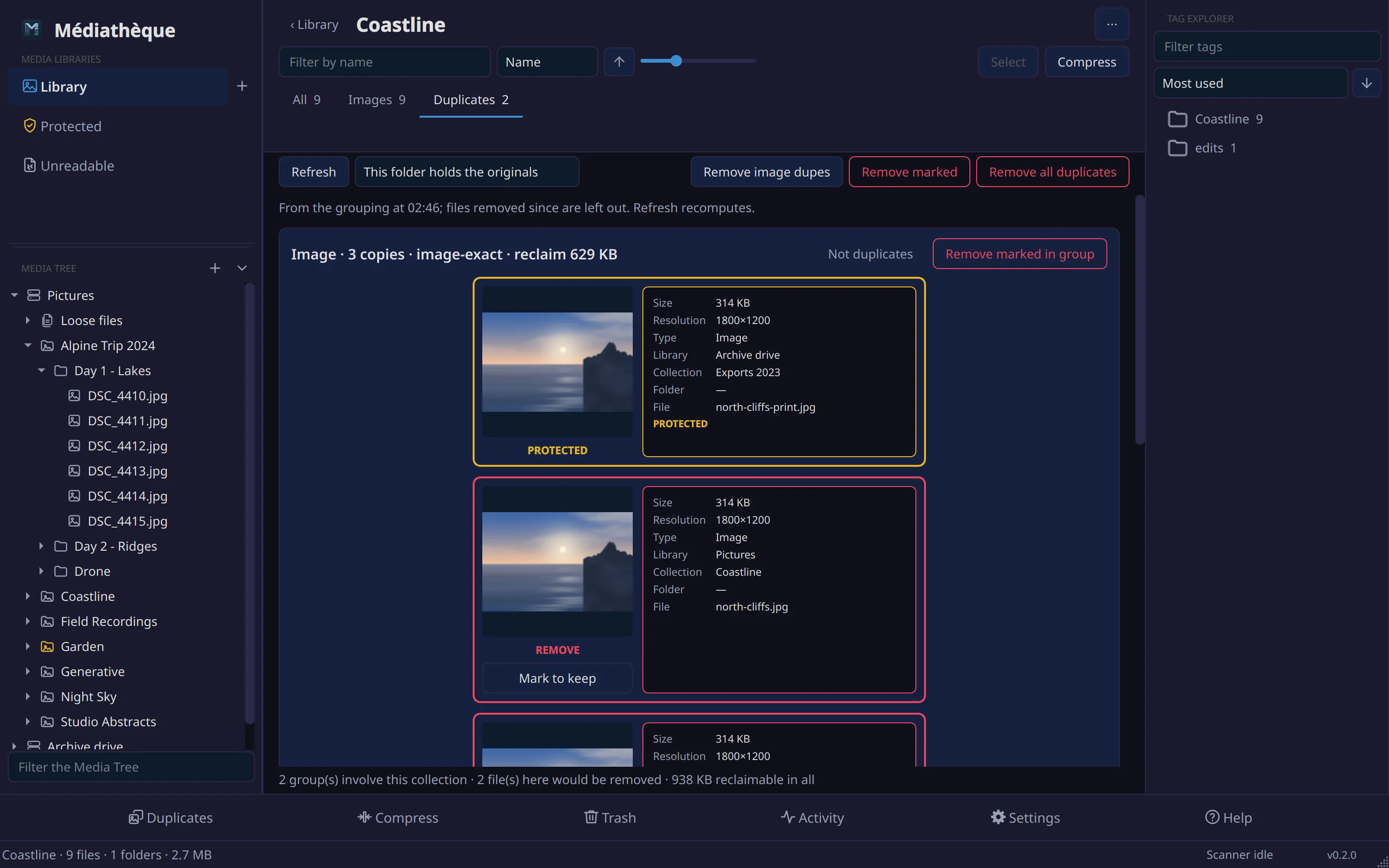
Each collection has its own Duplicates tab with the groups that involve it. A switch at the top says what this folder is for:
- This folder holds the originals (the default): one copy of each group stays here, and the extra copies go, wherever they are.
- This folder holds the duplicates: any copy here that also exists elsewhere leaves, and the copy elsewhere stays.
The choice is remembered per folder, so an “Official” folder can always be the original and an “Extras” folder always the duplicate. Protection outranks both.
Merging folders
When two folders overlap, such as an old folder and its update, Merge folders… makes them one. It appears on a group whose copies sit in different folders, and in the Media Tree when you select two or more folders.
- Choose the folder to keep. The preview shows what each folder holds, how many of its files have a duplicate in the others, and exactly what will happen before anything moves.
- Duplicates between the folders go to the trash, keeping the best copy of each, even when that copy is in another folder: it moves into the one you keep.
- Every other file moves in too, subfolders and all. Nothing is overwritten: if a name is taken, the file arrives as “name (1)”, and a video's subtitles get the same number.
- Moved files are tagged with the name of the folder they came from. You can remove that tag like any other.
- The emptied folders go to the trash.
A merge won't start while any file in the folders is still being read or has changed since the last scan, when one folder is inside another, or when a folder to be emptied is protected.
What happens when you remove
- Removed copies go to the trash, not away.
- Just before each removal the index and the disk are checked again. If a file changed since the grouping, that removal is refused.
- The copy that stays inherits the removed copies' tags and folder names, and their file names become its AKAs.
- If a removed copy sat in a manual album, the kept copy takes its place there.
- Folders left empty by a removal can go to the trash too (Settings › Duplicates).
Automatic removal
Settings › Duplicates can remove duplicates within a collection after each scan. It is off by default, and groups that span collections always wait for you.
Compression
Compression re-encodes video to save space at a quality you choose. It needs the encoder tools, which the first-run setup installs; Settings › Compression can verify them.
Adding videos
Queue videos with Compress on a file, a selection, or a collection page, or with Compress videos now on a collection card. Compress new videos automatically on a card queues every new video that arrives in that collection.
The queue
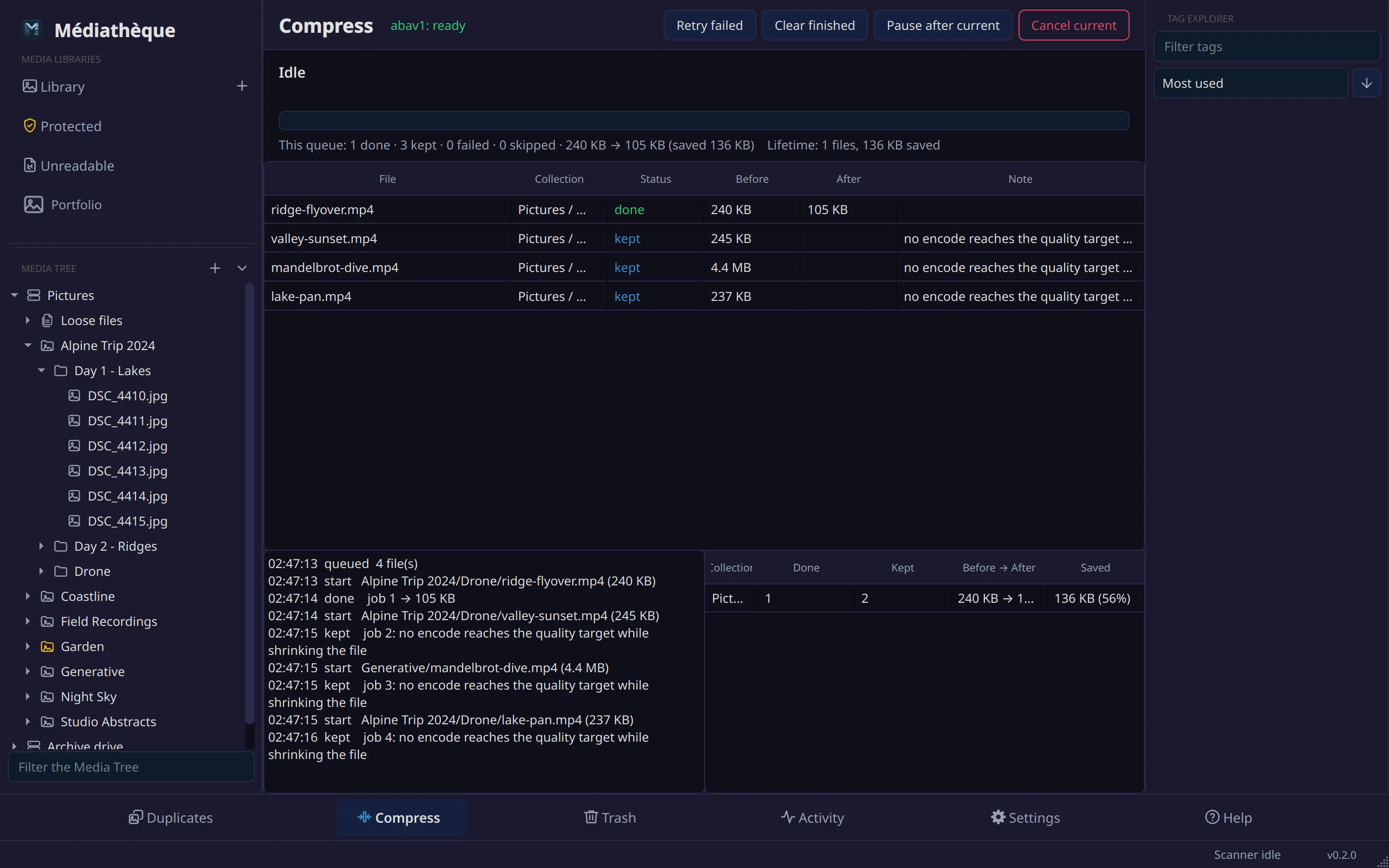
The Compress page shows the file being encoded with its progress, totals for this queue and for all time, the queue itself, a log, and the space saved per collection. Pause after current, Cancel current, Retry failed and Clear finished control it.
| Outcome | Meaning |
|---|---|
| done | The smaller file replaced the original. |
| kept | No encode met the quality target at a smaller size, so the original stays untouched. This is not an error. |
| skipped | Shorter than the minimum length, already in the chosen codec, or otherwise not worth it. |
| failed | Something went wrong; the original is untouched and the log says why. |
Settings that matter
- Encoder: ab-av1 searches for the smallest AV1 file that meets the VMAF target (95 by default). NVENC, VA-API and plain CPU encoders are faster, with larger files and no quality search. Codec picks AV1 or HEVC for those.
- Resize caps the smaller side at 480p, 720p (the default) or 1080p, or never resizes. Nothing is ever upscaled.
- Skip videos shorter than 60 seconds by default, where the quality search costs more than it saves.
Your original is safe
The new file is written beside the original and swapped in only after the original is proven unchanged since the encode began. The compressed file keeps the original's fingerprint, so it still finds its duplicates, and it wins those groups.
Protection
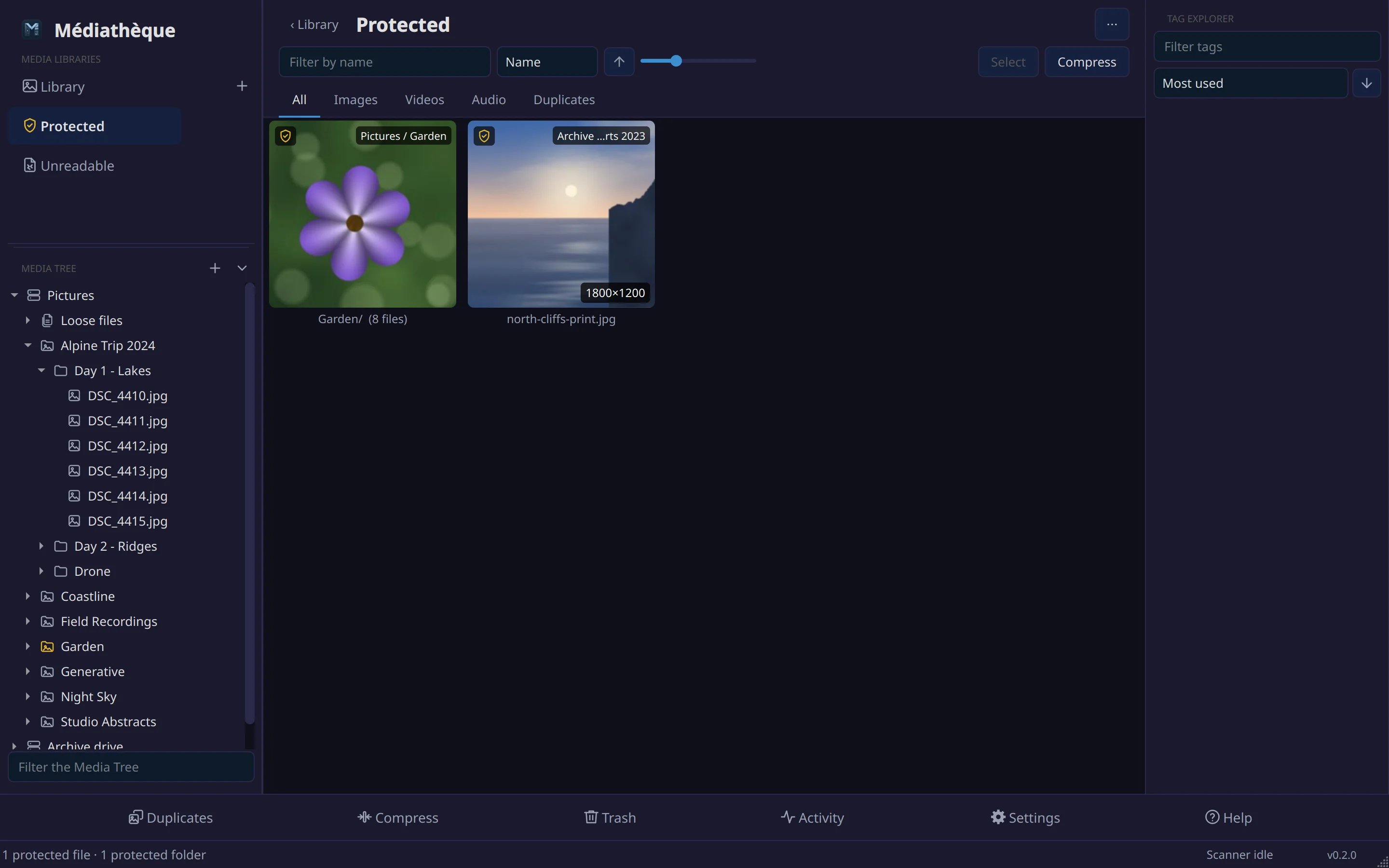
Protect a file (Protect on the file, or P in the viewer), a folder (in the Media Tree), or a whole library folder (in the Media Tree or Settings). A protected file cannot be moved to the trash anywhere in the app, and it always wins its duplicate group. Protected files and folders are marked in gold.
The trash
Médiathèque keeps its own trash, separate from your desktop's. Each library folder has a hidden .mediatheque-trash folder on the same drive, so moving a file there is a rename rather than a copy, however large the file.
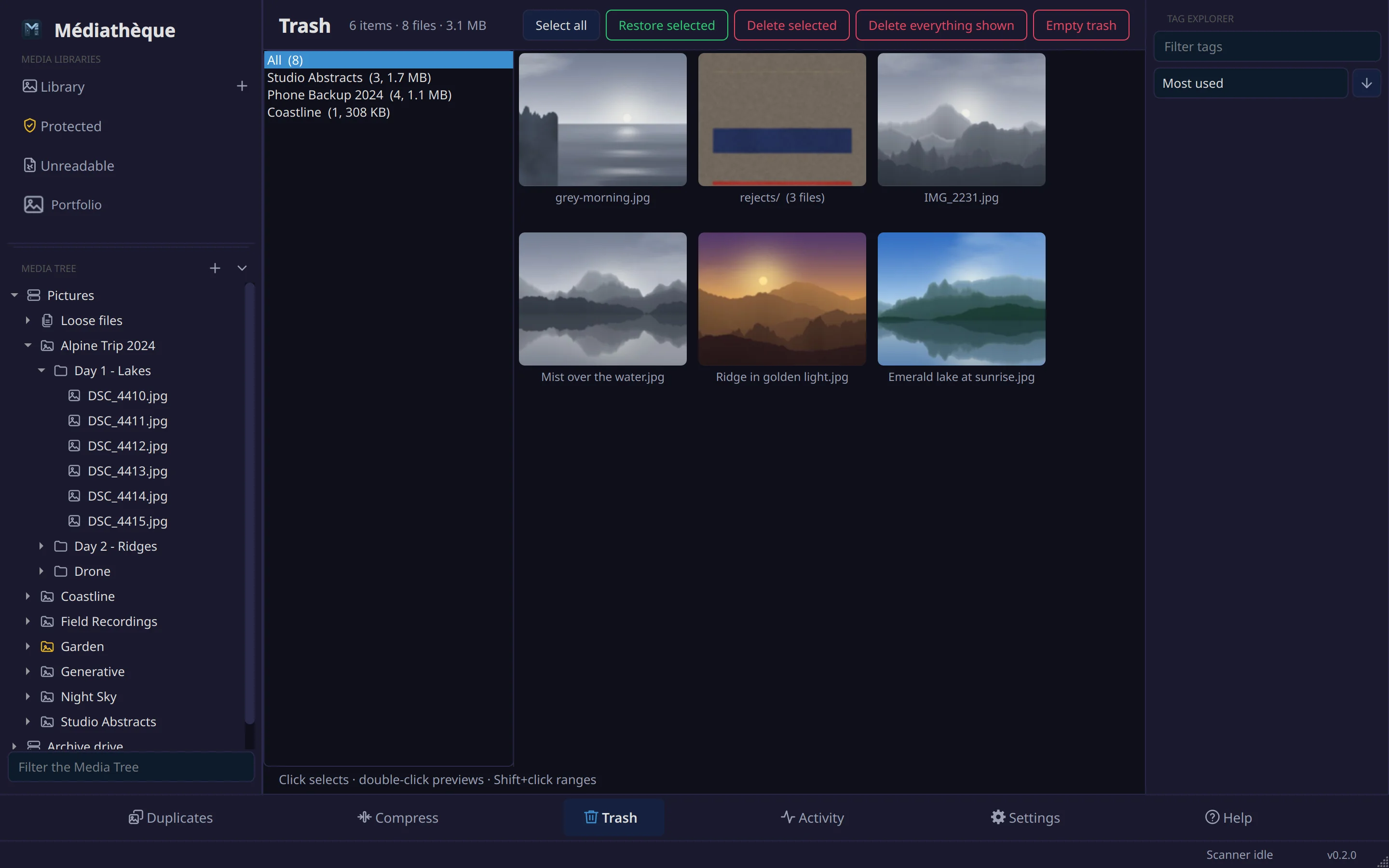
- The rail on the left groups the trash by collection. Right-click a group to restore or delete all of it.
- Trashed folders show as one tile with their file count. Double-click one to see its contents.
- Restore selected puts files back where they were. If something new now has that name, the restored file gets
.restoredadded rather than replacing it. - Delete selected, Delete this collection's trash and Empty trash delete for good, after asking.
Settings › Trash can empty the trash automatically after a number of days. It keeps everything by default.
Libraries and albums
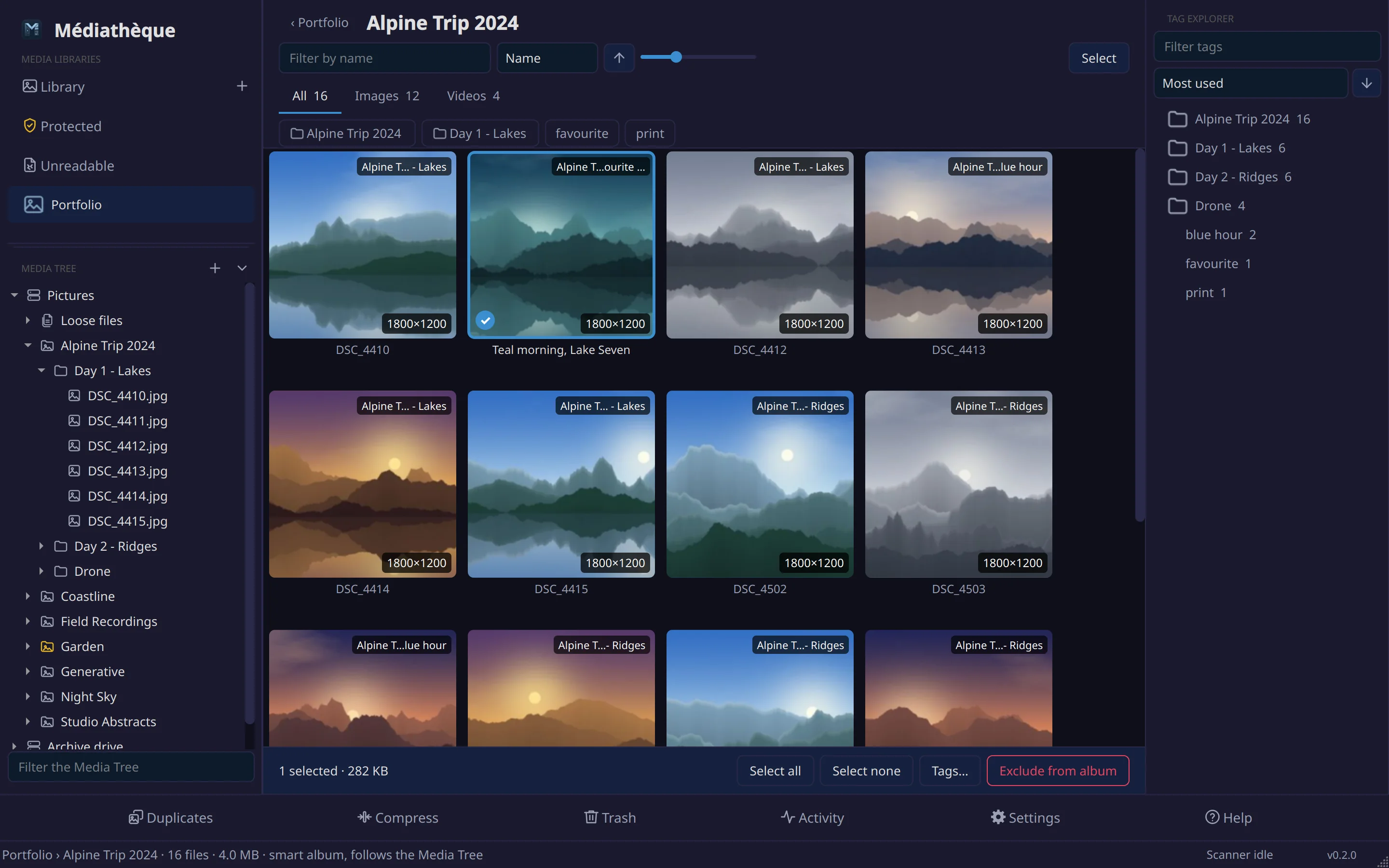
Your own libraries sit under Media Libraries. Choose New library… to make one; each holds albums. Nothing you do in an album moves, renames or deletes a file.
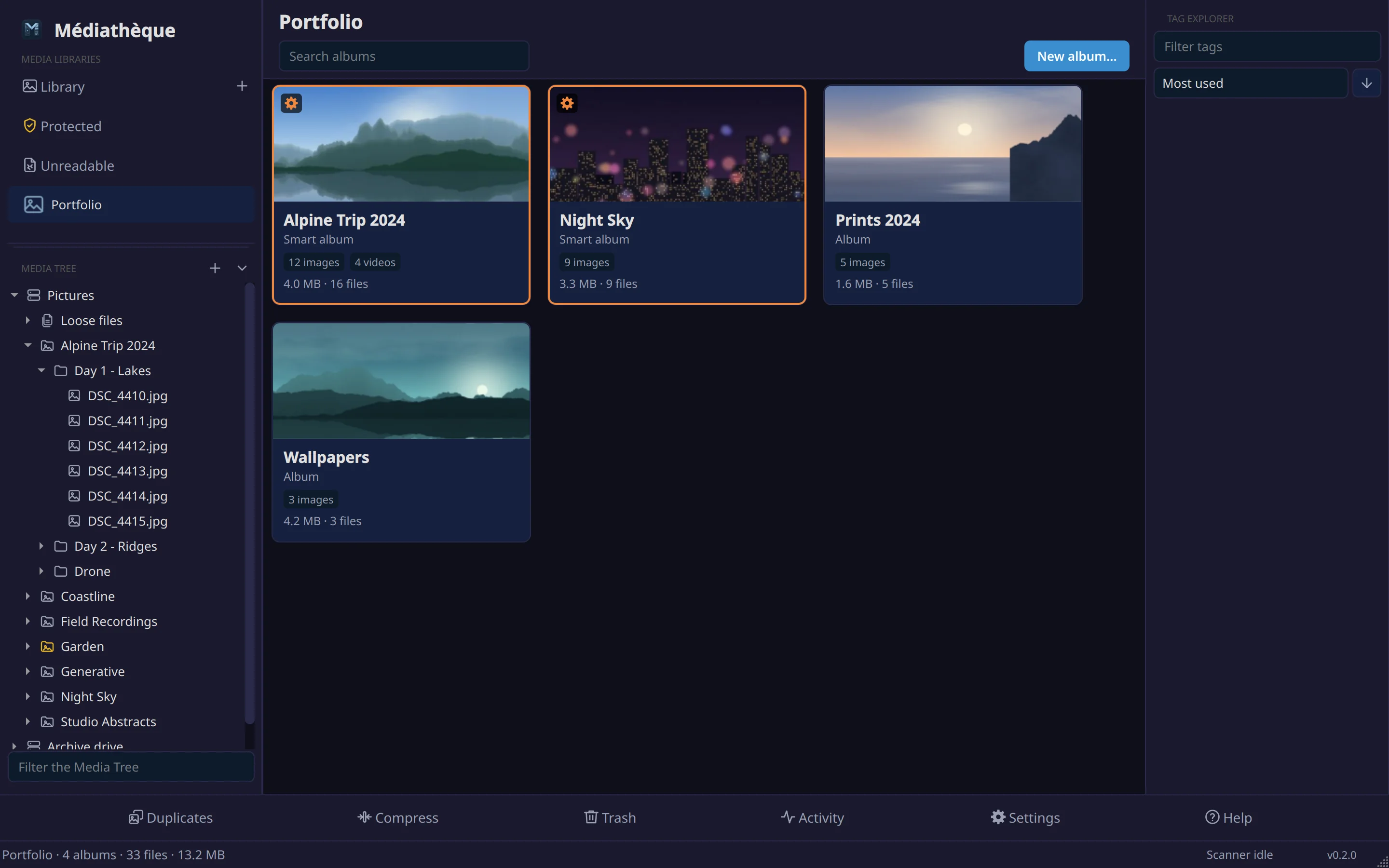
- Manual albums hold the files you drop on them, from any grid or the Media Tree, or add with Add to album…. Remove from album takes a file out.
- Smart albums follow a folder: drop a folder or collection from the Media Tree onto a library. New files in that folder appear, trashed ones vanish, and renames and moves follow. A smart album's card has a ring and a gear in orange. To leave a file out, use Exclude from album; the Excluded tab brings it back.
- In an album, files show a name rather than a file name. Rename in album… sets it without touching the file.
- Folder names arrive as tags. Renaming or removing one inside an album affects that album only.
- Albums have covers, chosen and framed like a collection's.
AKAs
When a duplicate is removed, its file name is saved on the copy that stays as an AKA, “also known as”. A descriptive name like “Emerald lake at sunrise” survives even when the camera's DSC_4410.jpg is the copy kept. Camera-style names such as IMG_1432, date stamps and plain numbers are not saved.
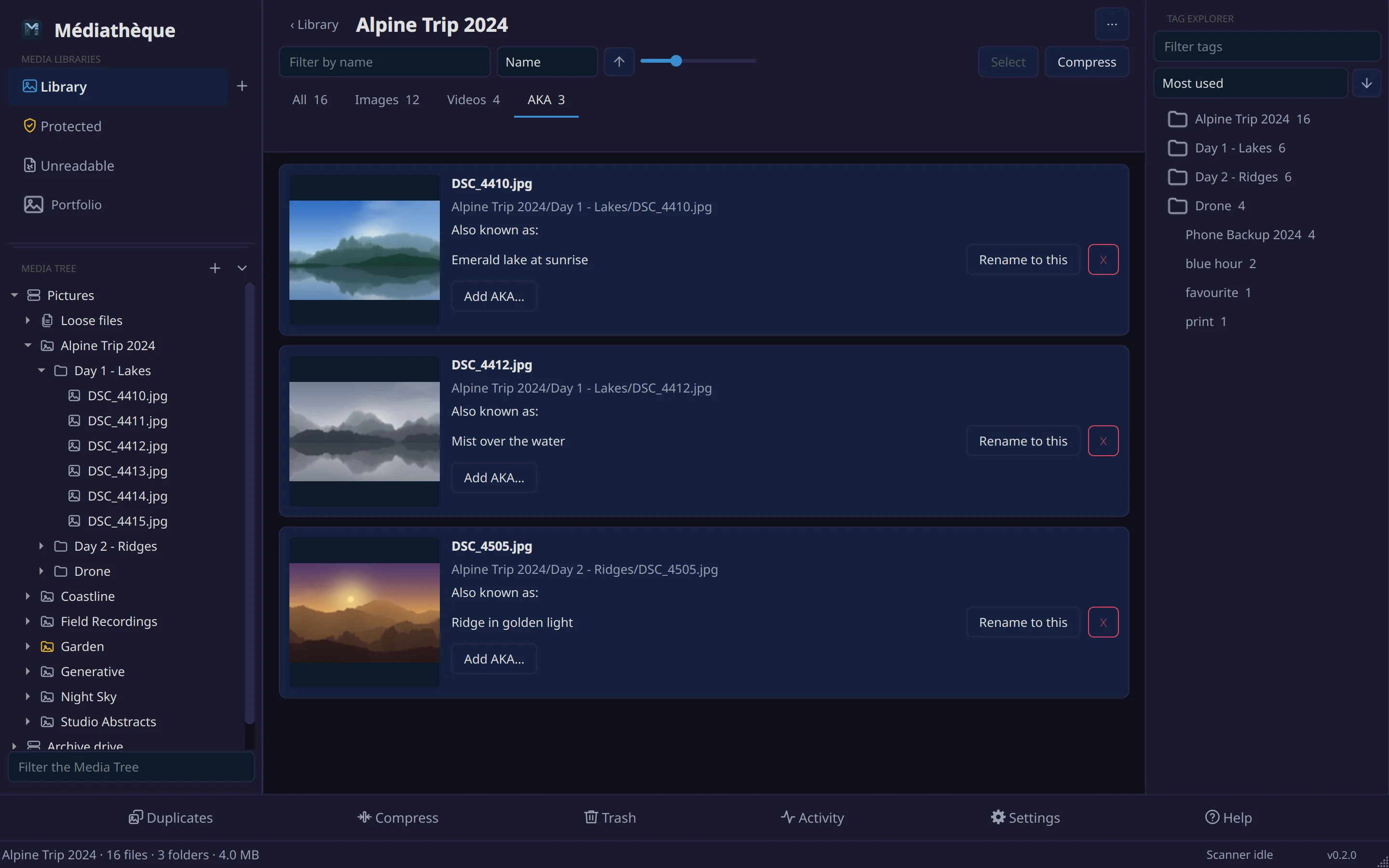
A collection or album with any AKAs gets an AKA tab. Each file shows its AKAs with Rename to this, a button to forget one, and Add AKA…. In a collection, renaming renames the file; in an album it sets the album name only. The name filter matches AKAs too.
Unreadable files
Some files cannot be read: a video with no usable stream, a picture that will not decode, a download that never finished. They cannot be compared for duplicates and show only as placeholders, so they get a library of their own under Media Libraries, shown only while there are some.
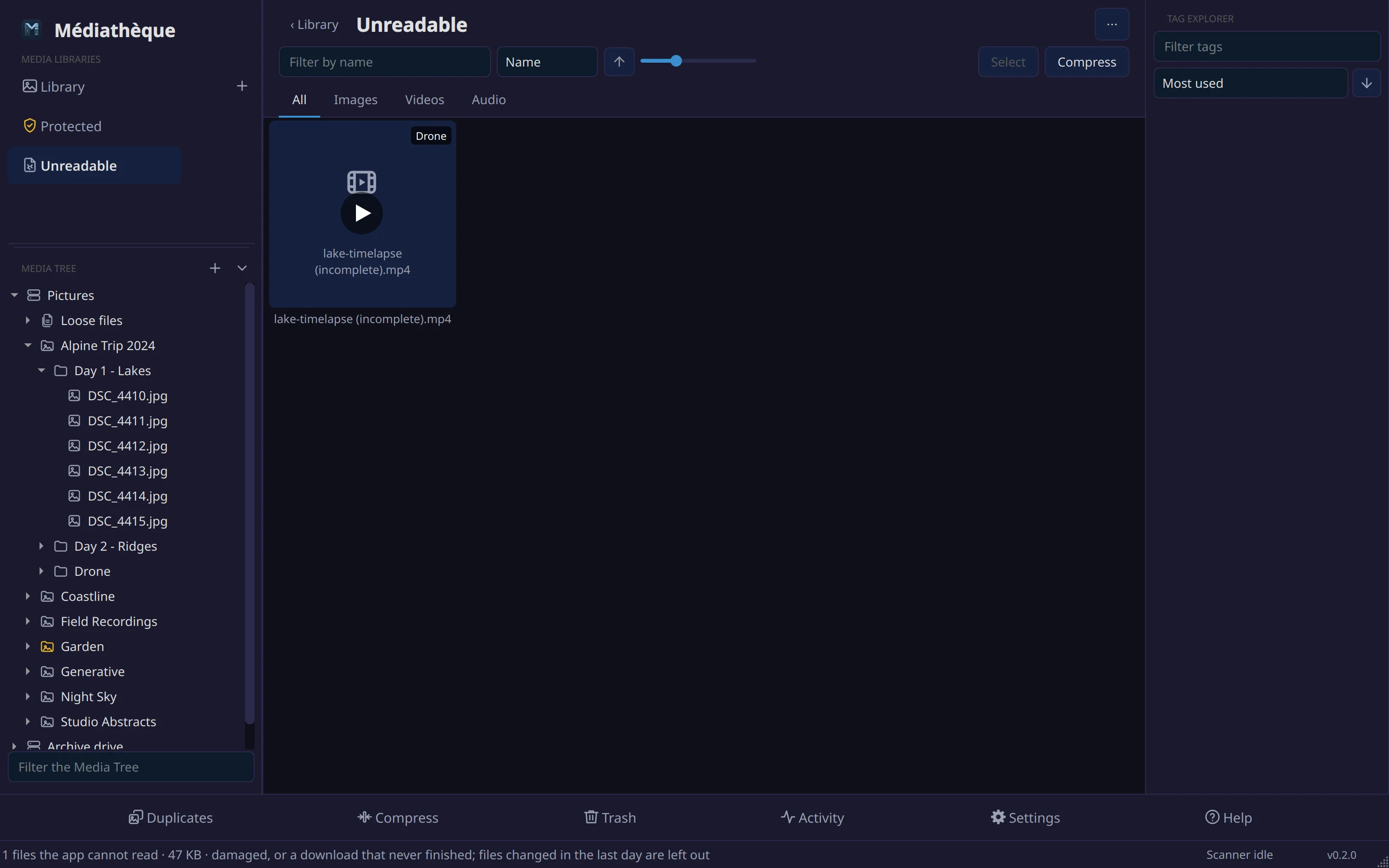
Every file action works here, so you can select them all and move them to the trash. Files changed in the last day are left out, since a download in progress looks exactly the same; once it finishes, it is read and drops off the list by itself.
Activity
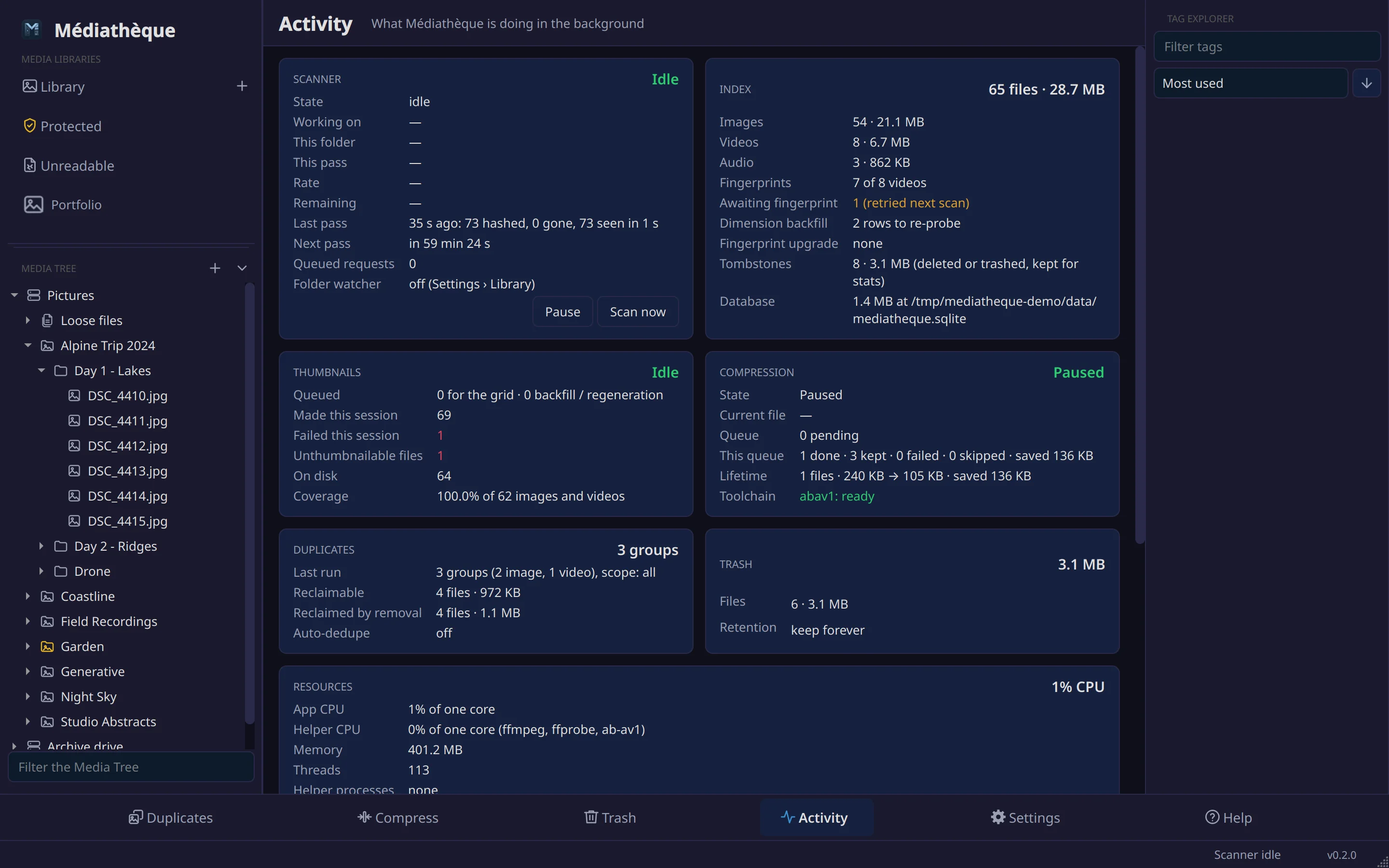
The Activity page shows what Médiathèque is doing in the background: scanning, fingerprinting, thumbnails, duplicate grouping and encoding, with the processor time it is using and a list of recent events. Open log file opens the full log.
Settings
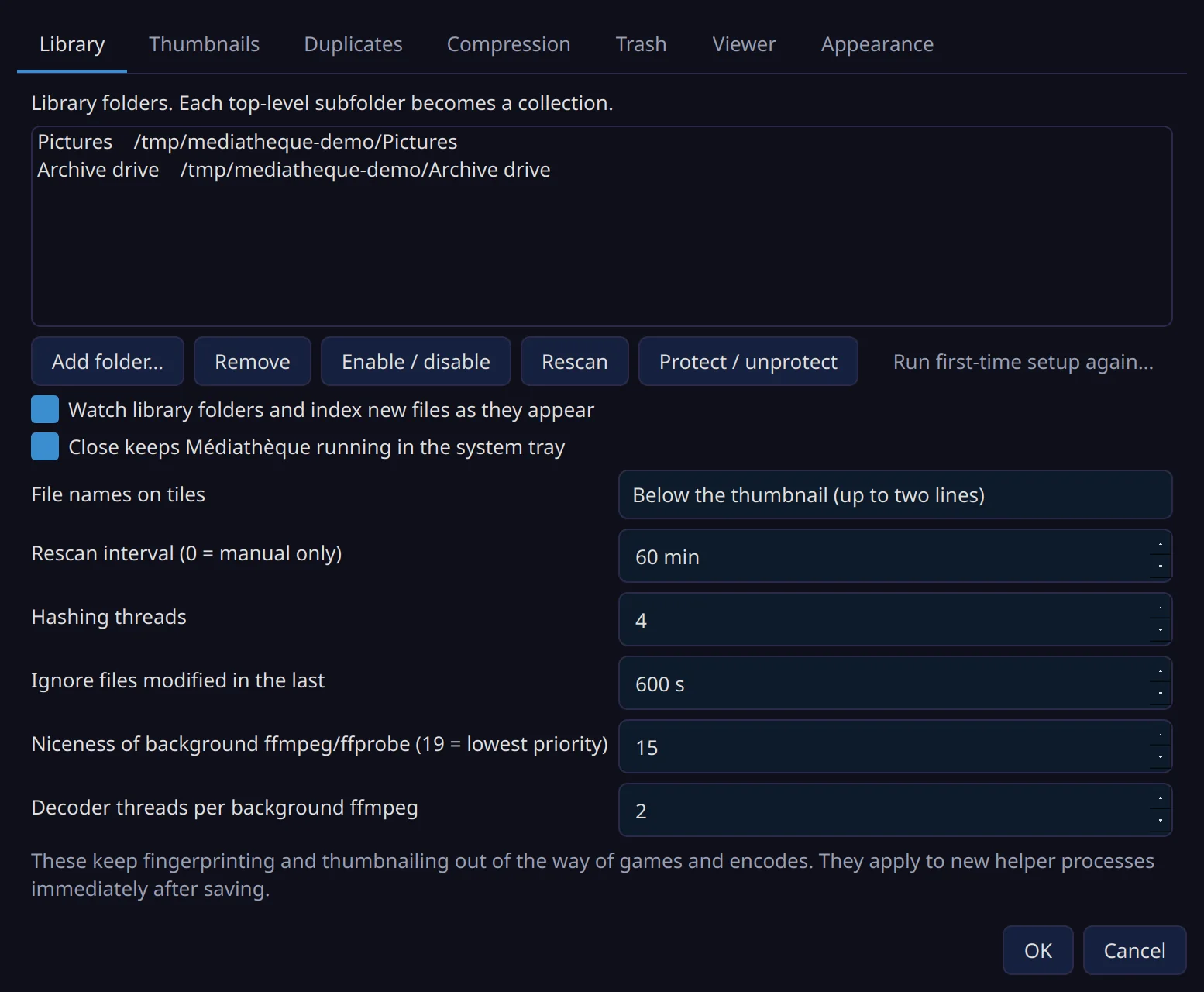
Settings in the Control Bar, or Ctrl+,, opens seven tabs.
| Tab | What is there |
|---|---|
| Library | Library folders (add, remove, enable, rescan, protect), watching folders, closing to the tray, file names on tiles, the rescan interval, hashing threads, how long to leave recently changed files, and how gently background work runs. |
| Thumbnails | Where a video's thumbnail frame comes from: the default, a number of seconds in, or a percentage of the way through. |
| Duplicates | Automatic removal within collections, confirming bulk removals, trashing folders left empty, and the video match threshold (12 is the tested value). |
| Compression | Encoder, codec, SVT-AV1 preset, resize cap, minimum length, VMAF target, audio bitrate, priority, stall timeout, and Verify toolchain. |
| Trash | Keep forever or empty after a number of days, and whether to confirm before moving to the trash. |
| Viewer | Handing files to your desktop's own apps, autoplay, loop, start muted, and what the mouse wheel does on videos and pictures. |
| Appearance | The colours for selection, protection and smart albums. |
Keyboard shortcuts
| Key | Anywhere in the window |
|---|---|
| Ctrl+1 | Library |
| Ctrl+2 | Duplicates |
| Ctrl+3 | Compress |
| Ctrl+4 | Trash |
| Ctrl+5 | Activity |
| Ctrl+, | Settings |
| F1 | This guide, at the page you are on |
| F11 | Full screen |
| Ctrl+Q | Quit |
| Key | In a grid of files |
|---|---|
| Ctrl+F | Filter by name |
| Ctrl+A | Select all |
| F2 | Rename the current file |
| Delete | Move the selection to the trash (Backspace too) |
| Enter | Open the current file |
The viewer's keys are listed with the viewer.
Where things live
These are the locations on Linux.
| What | Where |
|---|---|
| Index and settings | ~/.local/share/mediatheque/mediatheque.sqlite |
| Encoder tools | ~/.local/share/mediatheque/tools/ |
| Log | ~/.local/share/mediatheque/mediatheque.log |
| Thumbnails | ~/.cache/mediatheque/thumbs/ (safe to delete; they are made again) |
| Encoding work | ~/.cache/mediatheque/encode/ |
| Trash | <library folder>/.mediatheque-trash/, one per library folder |
Command line
A few things work without the window, which is handy on a server or over SSH:
mediatheque-cli add-root /path/to/photos
mediatheque-cli scan
mediatheque-cli dupes --scope within
mediatheque-cli status
mediatheque-cli tools